
The USB stick
The two file systems this model supports. FAT32 when every file is under 4 GB; NTFS when a single video is bigger. If a stick misbehaves, reformat to FAT32 first.
Images: JPEG, PNG, BMP — max 20 MB per image. JPEG up to 7680×4320; PNG and BMP up to 4096×4096. No WebP, GIF, TIFF or SVG. This model also plays PowerPoint (ppt/pptx, Office 97–2019), Word (doc/docx) and PDF files directly — but without animations, and some fonts and Arabic shaping can render wrong. Export to PDF or image and check on the screen before relying on it.
| Video codec | Max resolution | Max bitrate |
|---|---|---|
| H.264 (recommended) | 3840×2160 @ 60fps, or 1920×1080 @ 120fps | 80 Mbps |
| HEVC / H.265 | 3840×2160 @ 120fps — only in MKV/MP4/TS | 100 Mbps |
| AV1 | 3840×2160 @ 120fps | 80 Mbps |
| VP9 | 3840×2160 @ 60fps (WebM) | 80 Mbps |
| MPEG2 / MPEG4 / VC1 / VP8 | 1920×1080 | 20–70 Mbps |
Files in the root or in folders both work. Folder names that are too long can't be selected on screen. A slideshow needs at least two images — a lone image will not start.
Play directly from USB
Home → Settings (gear tab) → System → Play via → MagicInfo. The home screen layout changes with this setting.
Home → Settings → System → Time → Clock Set. The Player refuses to run without it.
Any USB port on the connector panel.
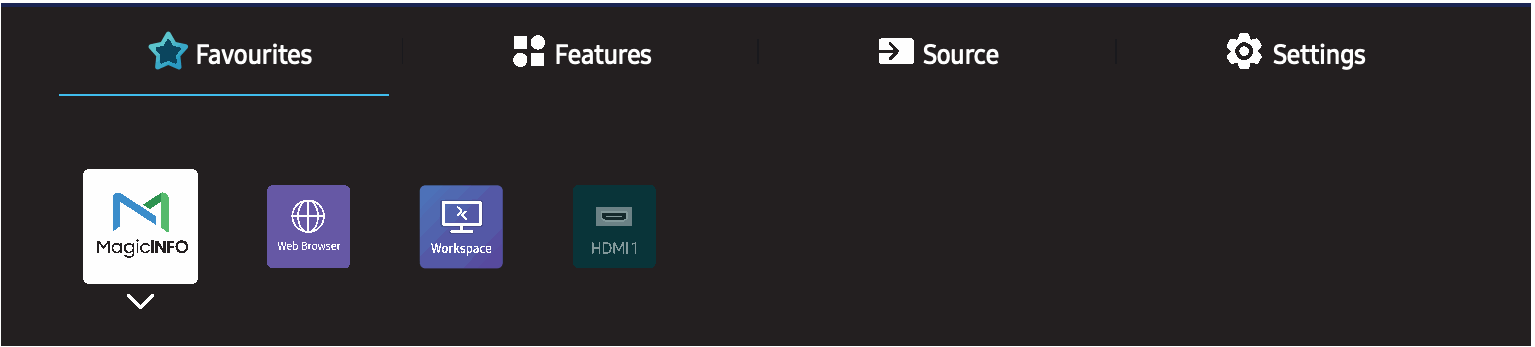
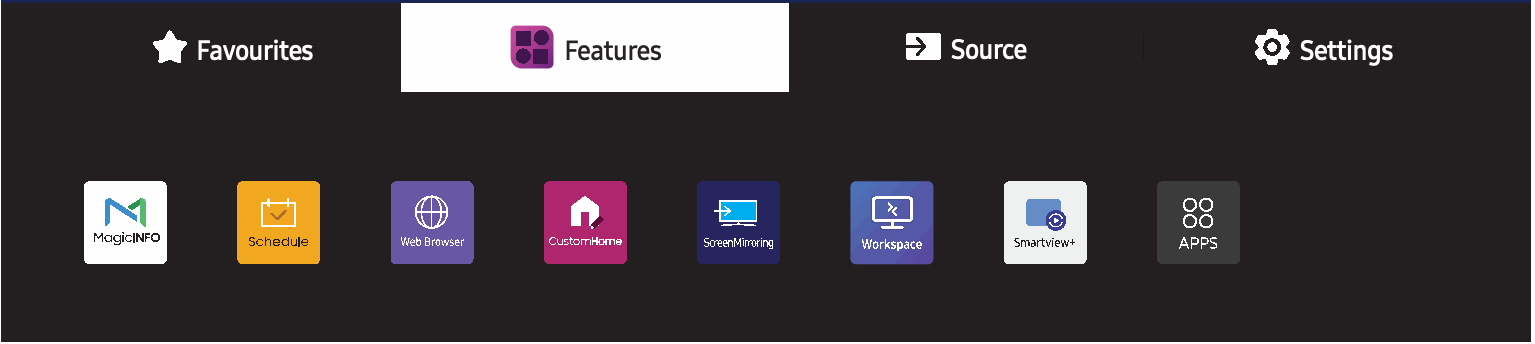
Press Home on the remote. This model's home screen is a tab bar: Favourites · Features · Source · Settings — there is no top-level "Player" tile like on the QB13R. Go to the Features tab, select MagicInfo (first icon), press Enter.
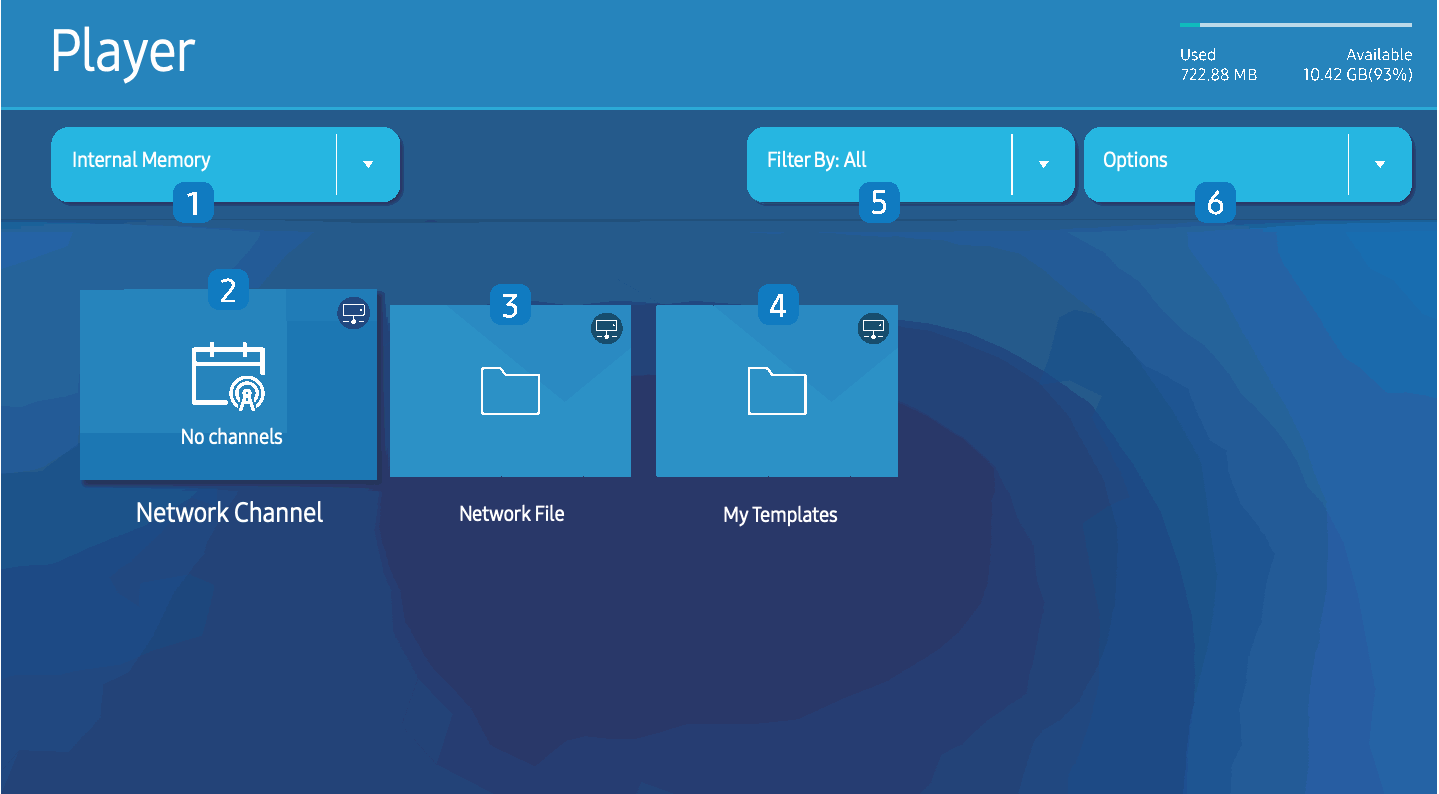
Open the top-left storage dropdown and pick the USB device — the entry only appears while a stick is inserted. Ignore the Network Channel / Network File / My Templates tiles; those are server features.
Selecting a file plays it. Selecting a folder plays its contents in alphabetical order as a loop — images become a slideshow. Filter By (top of screen) narrows to one content type.
- TOOLS — menu bar: Playlist, Sound Mode, Repeat All / Repeat One, Background Music
- INFO — content info (and server-connection status)
- ►/◄ — next / previous item · Enter — play/pause · Stop — back to Player
Options (top-right) holds Slide Show Speed and Effect, Contents Size, Default Contents (the fallback when nothing is scheduled — set it so the screen never goes blank), Send, Delete, Safely remove device.
Copy to internal memory, remove the stick
The QM65C has 16 GB internal storage, 10 GB available for content (Samsung's own figure). The Player's storage selector shows the live Available number.
With the storage selector on the USB device, open Options → Send. Tick the files, confirm Send → destination Internal Memory. Expect a wait — up to ~50 seconds before the OK message appears. Don't pull the stick early. Regular files land in the internal memory root; template (.LFD) files land under My Templates. (Copying the other way, to a stick, everything lands in a MagicinfoSlide folder. Delete works the same way: Options → Delete, then tick.)
Options → Safely remove device, pull the stick, set the storage selector back to Internal Memory, play from there. The screen now runs with nothing attached.
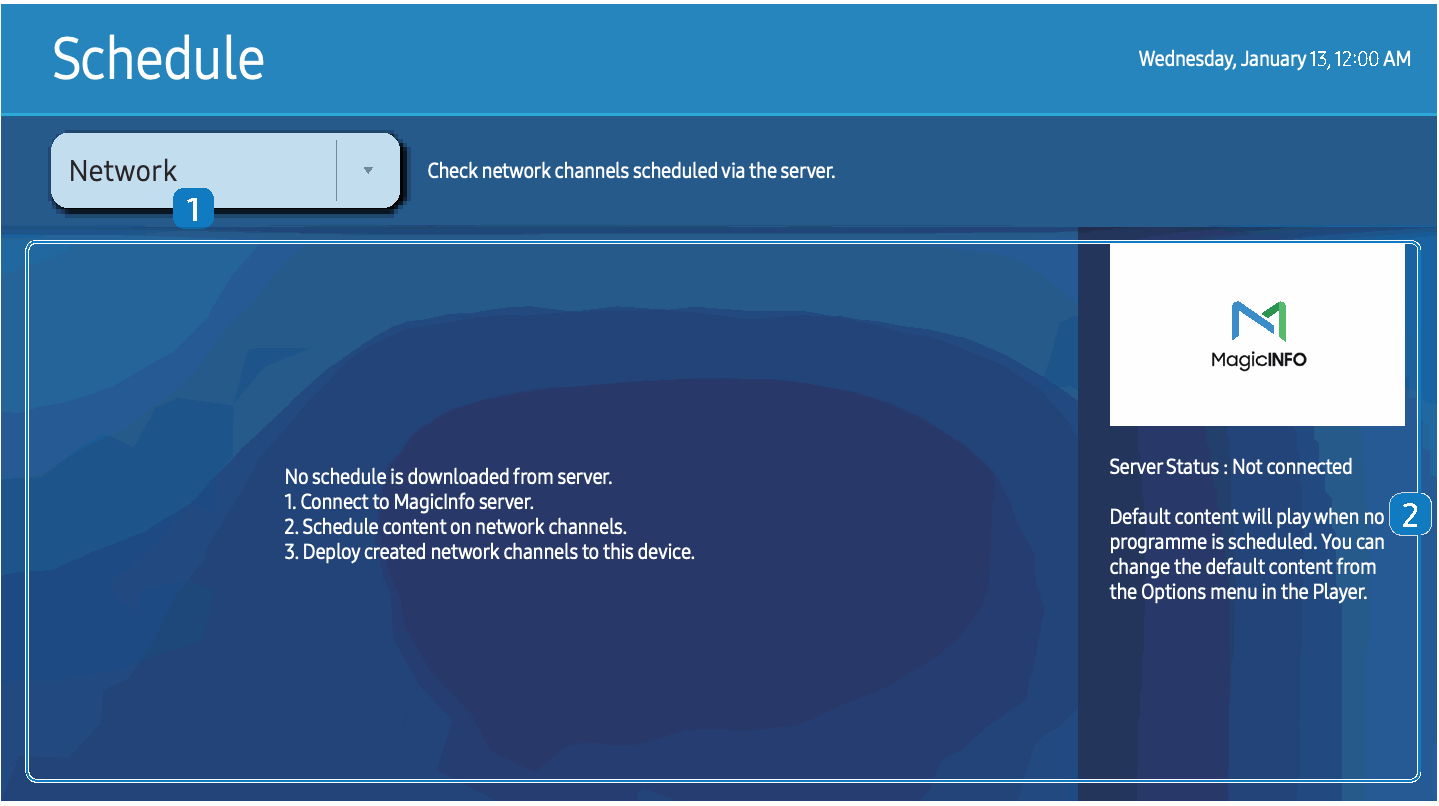
Options → Default Contents → tick one file → Done. It plays whenever nothing else is scheduled. Point it at a file on internal memory, never the stick.
The auto-publish USB (Contents / Schedules)
The "insert a stick and walk away" workflow, for content authored in MagicInfo Author/Premium and published to USB instead of the network.
USB root/
├── Contents/
└── Schedules/
These two folders are written automatically when publishing to a USB device from the MagicInfo authoring tools — don't create them by hand with loose files.
Home → Settings → System → Security → USB Auto Play Lock (PIN required — default 0-0-0-0-0-0):
- Off → published USB content plays automatically ← what you want
- On → nothing plays; the screen flashes "USB Auto Play Lock : On" for 5 seconds
Also confirm USB Lock in the same Security menu is Off, or the ports are dead entirely.
Properly published content appears as a Published Content tile on the Player screen and starts on its own. It can be copied to Internal Memory (it shows up there as one opaque "Published Content" item — the folders are absorbed).
Contents + Schedules = real published schedule that auto-plays. A folder named MagicinfoSlide = plain loop of loose media files (and it's also where the screen puts files it exports). Mixing them up is a classic support call.What's different from the QB13R
The workflow is identical on both models — the menus live somewhere else.
| QB13R | QM65C | |
|---|---|---|
| Home screen | Grid of tiles: Player, Schedule… | Tab bar: Favourites · Features · Source · Settings |
| Player | Home → Player | Home → Features → MagicInfo |
| Schedule | Home → Schedule | Home → Features → Schedule |
| On/Off Timer | Home → On/Off Timer | Home → Settings tab → On/Off Timer |
| Usable storage | ~4 GB | 10 GB (16 GB fitted) |
| Office / PDF files | Not playable | PowerPoint, Word, PDF play natively |
| 4K video | H.264 to 4096×2160 @ 30 | H.264 to 3840×2160 @ 60; HEVC/AV1 to 4K @ 120 |
| Clock / Play via / Security | MENU button → System | No Menu button — Home → Settings tab → System |