Two Windows 11 settings first
Do these before anything else — even before downloading. Samsung's official docs require both, and skipping them is the most common cause of a failed install.
Press Win+R, type services.msc, press Enter. Find Secondary Logon, right-click → Properties, set Startup type to Automatic, click Start, then OK.
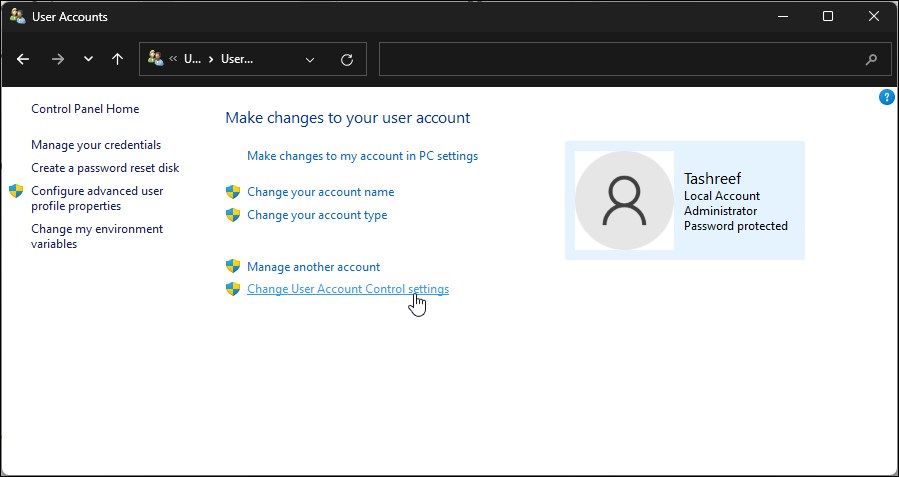
Press Win, type Control Panel, open it, then click User Accounts.
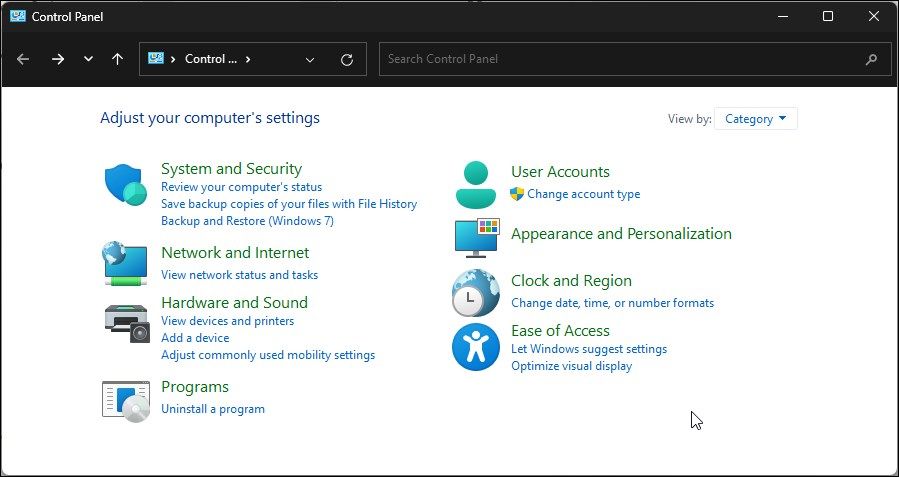
On the User Accounts page, click the shield-marked link Change User Account Control settings near the bottom of the list.
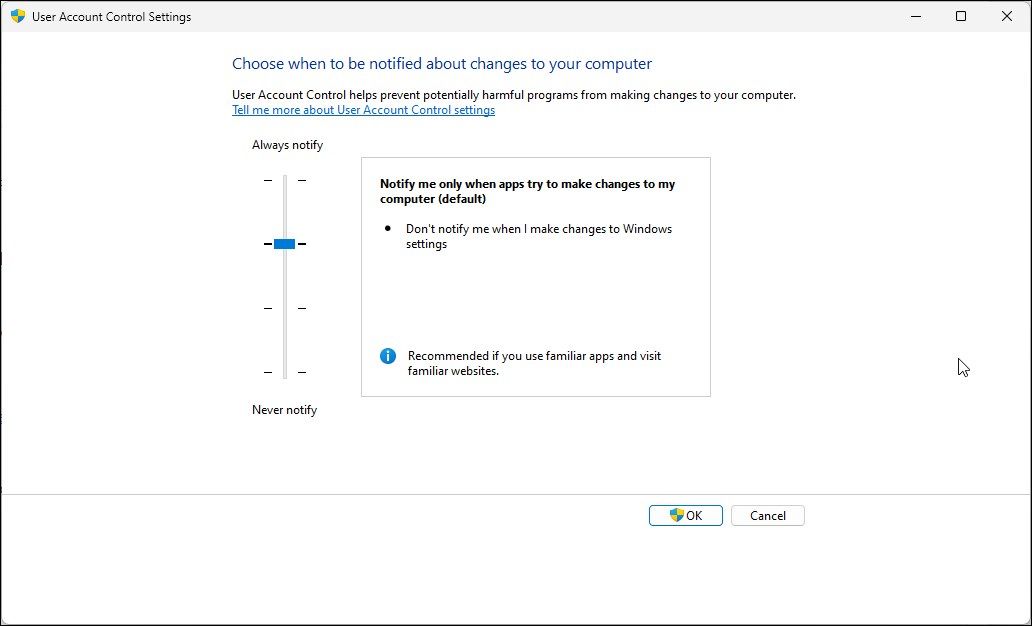
Drag the slider all the way to the bottom, click OK, and restart Windows. Restore this setting once both installs are finished.
MagicInfo Server can only be installed from a Windows administrator account, and the PostgreSQL installer must be started with Run as administrator. Log in as an administrator before starting either.
Use PostgreSQL 15.13 (x64)
MagicInfo Server V9 requires PostgreSQL version 15. Samsung's distributor ships exactly 15.13 x64 as the matching build. Don't install a newer major version unless told otherwise.
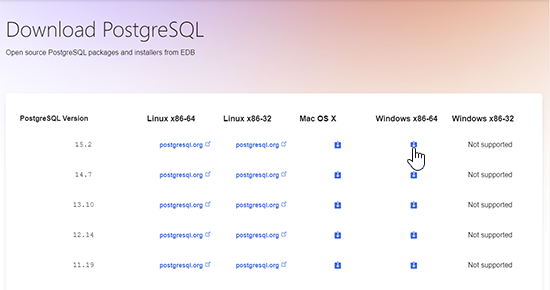
postgresql-15.13-3-windows-x64.exe (~351 MB) from the MagicInfo software page at magicinfoservices.com/magicinfo-software — it is hosted right next to the MagicInfo installer so the versions always match. Alternative: the EDB installer from postgresql.org, choosing 15.13 / Windows x86-64.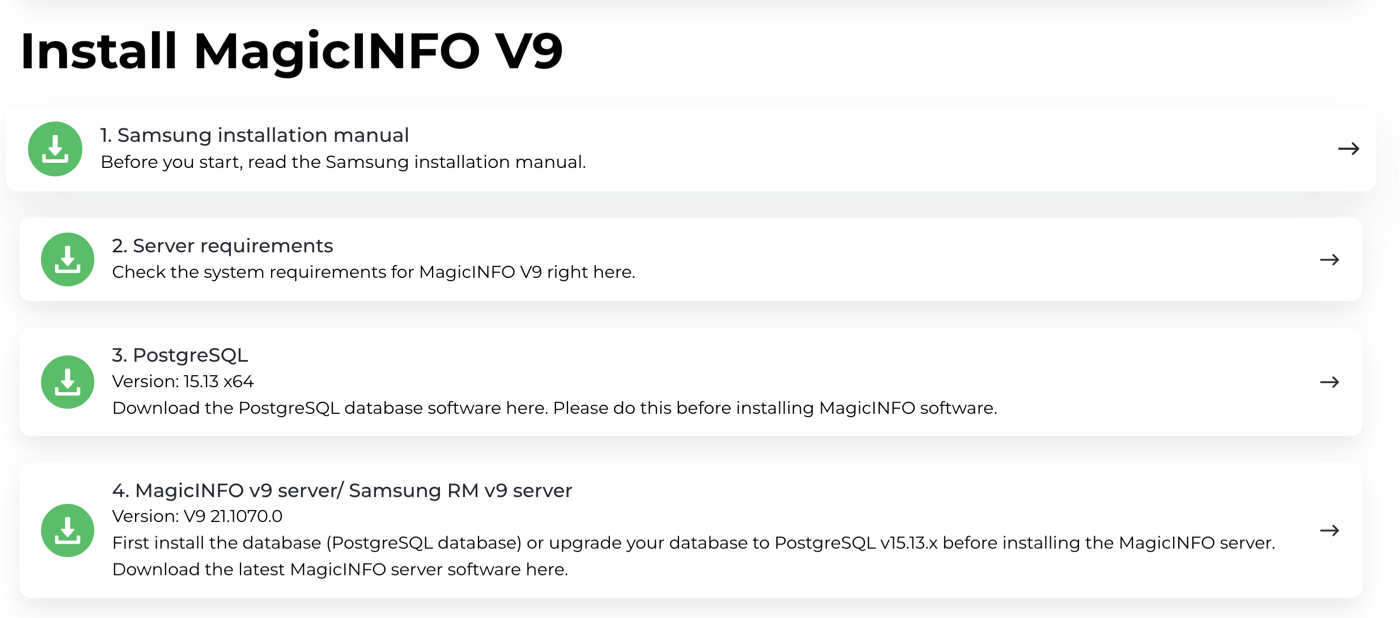
Run the wizard, screen by screen
Right-click the downloaded postgresql-15.13-3-windows-x64.exe → Run as administrator. Then follow the screens in order — defaults are correct everywhere except the password.
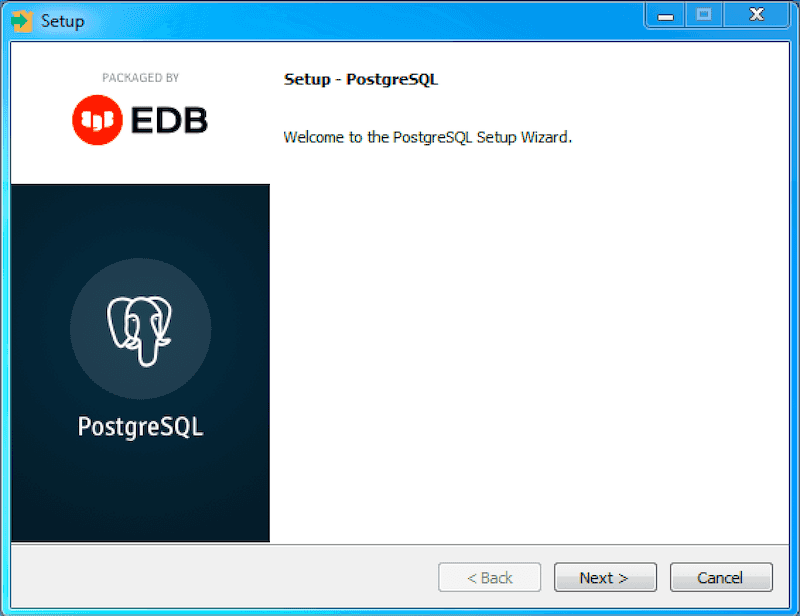
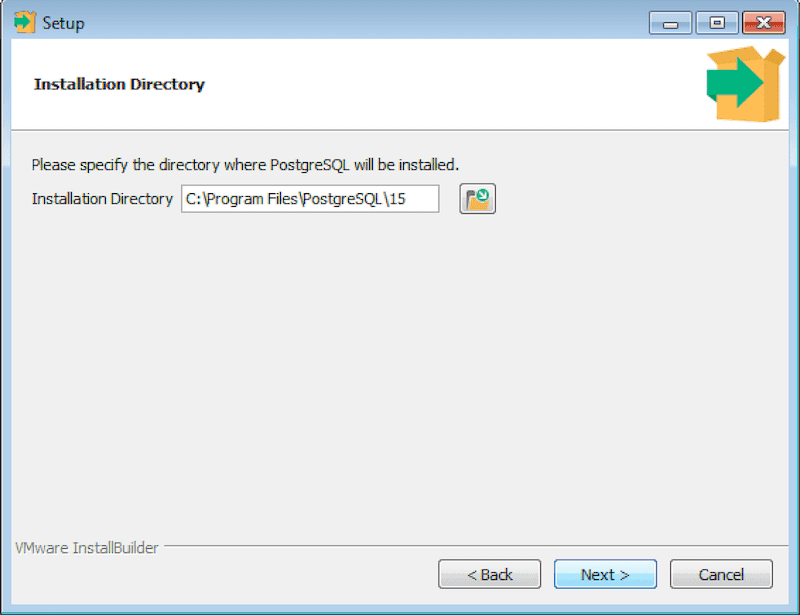
C:\Program Files\PostgreSQL\15. Non-standard paths are a known cause of the Windows service failing to start.
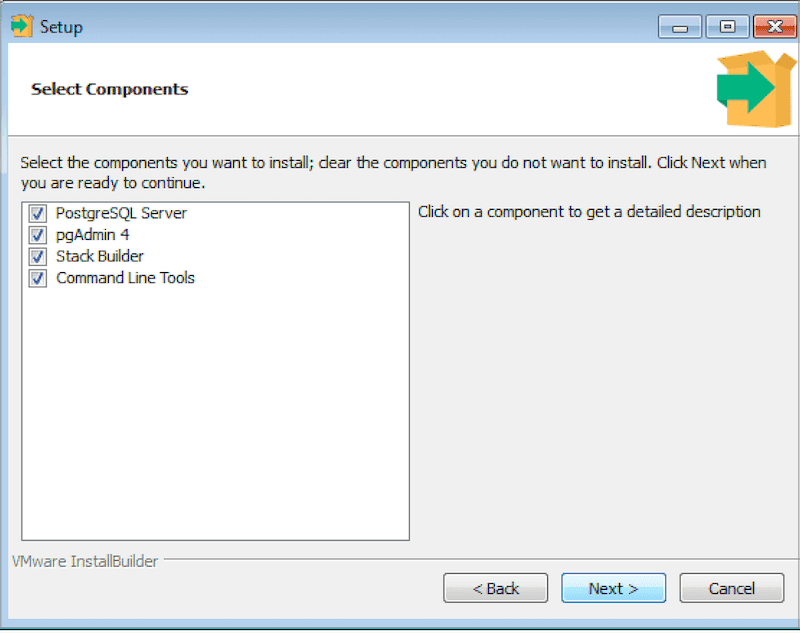
Keep PostgreSQL Server, pgAdmin 4 and Command Line Tools ticked. Untick Stack Builder — it only offers add-ons MagicInfo doesn't use, and there's no point installing a component just to decline it later.
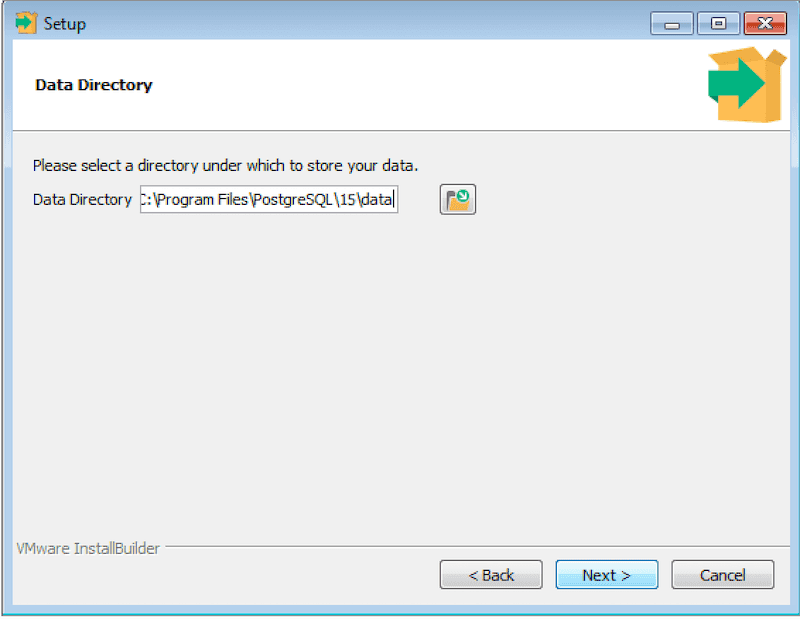
C:\Program Files\PostgreSQL\15\data. This folder will hold the entire MagicInfo database — include it in any backup plan.
This is the postgres superuser password. The MagicInfo installer asks for it in the next step, and it cannot be recovered. Write it in the site notes now.
Use a password in this format — long, with capitals, small letters and digits. Symbols are deliberately avoided (see the warning below):
Ruqaqa99MagicInfoThat is an example of the format only — this guide is public, so an example typed verbatim is guessable. Change some characters and make a different one for every install.
& # ^ % ! " ' < > | ( ) or spaces. The PostgreSQL installer passes the password through Windows command scripts, and these characters break the install with "The database cluster initialisation failed". Letters and digits only. If a stronger password is required, change it after the install succeeds.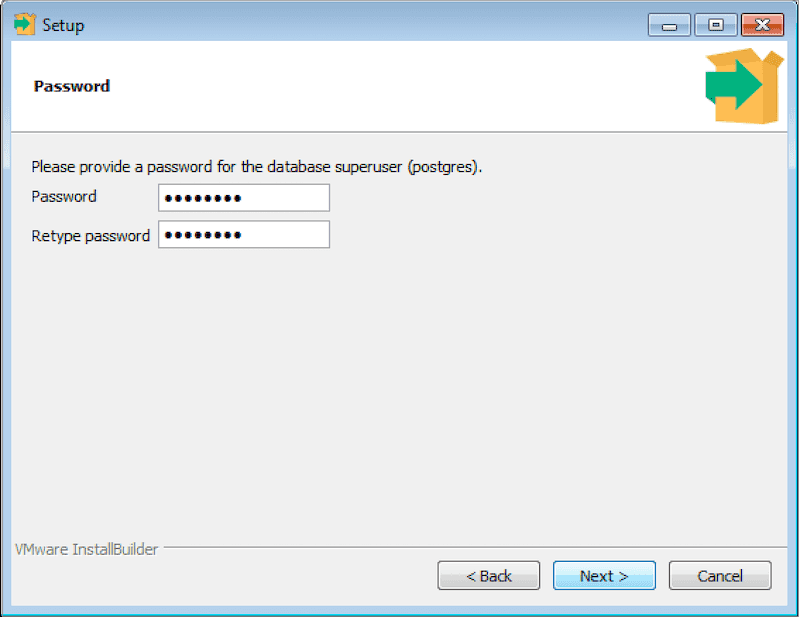
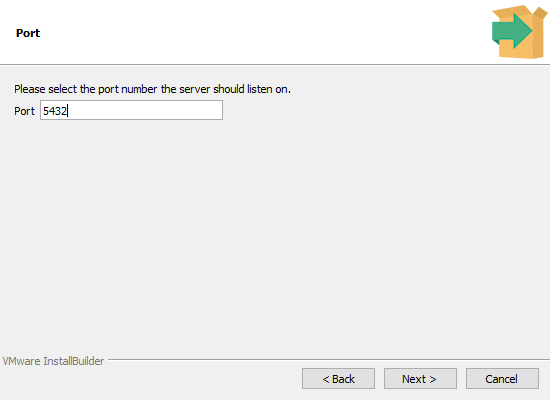
Only change it if 5432 is already taken — and then record the new number next to the password.
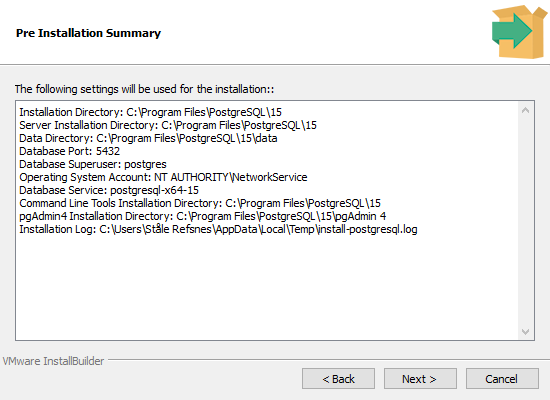
Verify directory, port and components match what you entered.
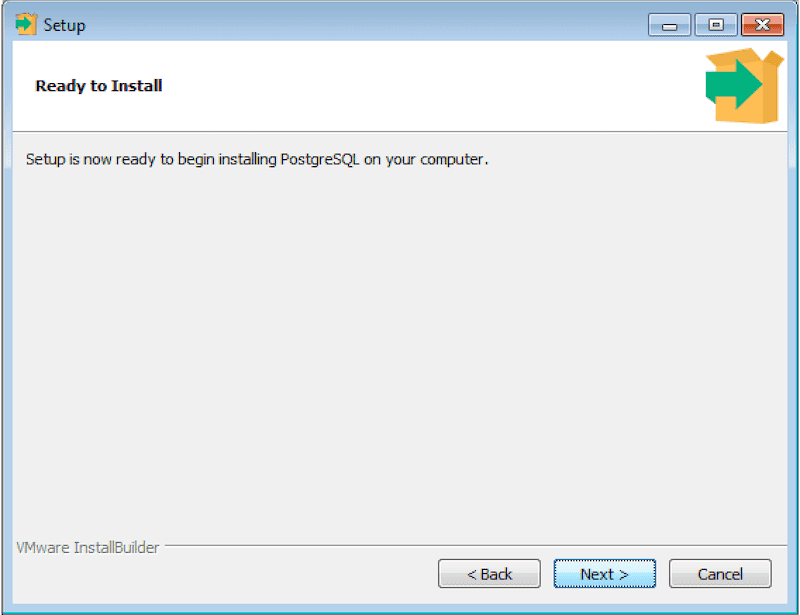
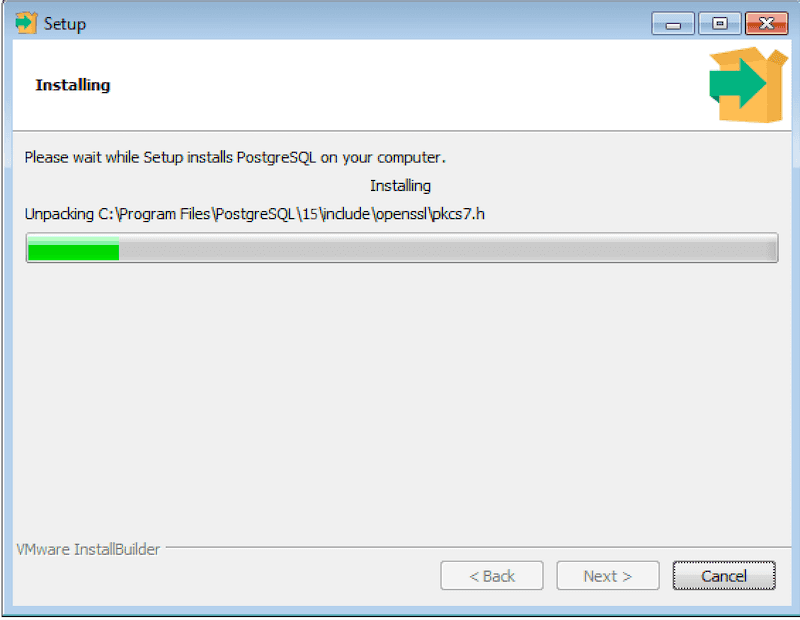
Several minutes. Do not interrupt or reboot.
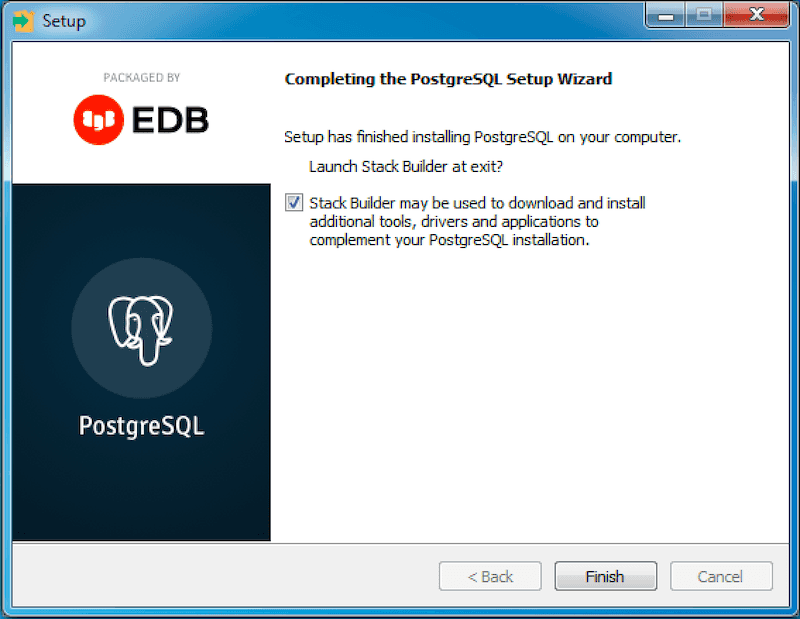
If a "Launch Stack Builder at exit?" checkbox appears — it only shows when Stack Builder was installed — untick it before clicking Finish. If you unticked Stack Builder earlier, the checkbox won't be there; just click Finish.
If the install fails
Error near the end of the install: "Problem running post-install step… The database cluster initialisation failed." Causes, in order of likelihood:
The most common cause — see the warning at the password step. Characters like & # % ! break the installer's Windows command scripts. Reinstall with a letters-and-digits password.
Go back to the prerequisites at the top of this page — start the service, then reinstall.
Check Windows Security → Protection history. For the retry, temporarily disable real-time protection and Controlled folder access, then re-enable both afterwards.
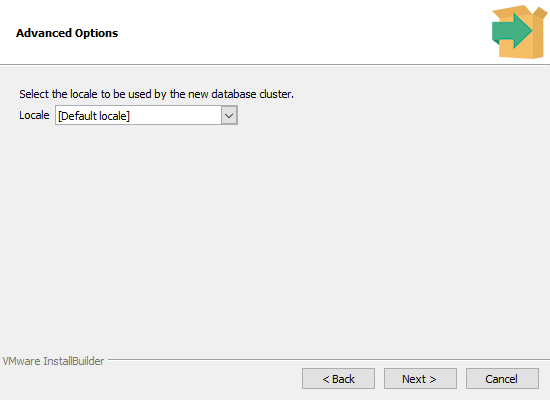
On systems with a non-Latin region, choose the locale English, United States at the installer's Advanced Options screen instead of [Default locale].
C:\Program Files\PostgreSQL\ entirely → reinstall with the fix applied. For diagnosis, the installer log is at %TEMP%\install-postgresql.log — search for initdb or initcluster.Confirm it's running before installing MagicInfo
Run services.msc and find postgresql-x64-15: Status Running, Startup type Automatic. Or in PowerShell:
Get-Service -Name "postgresql-x64-15" | Select-Object Name, Status, StartType- Press the Win key, type
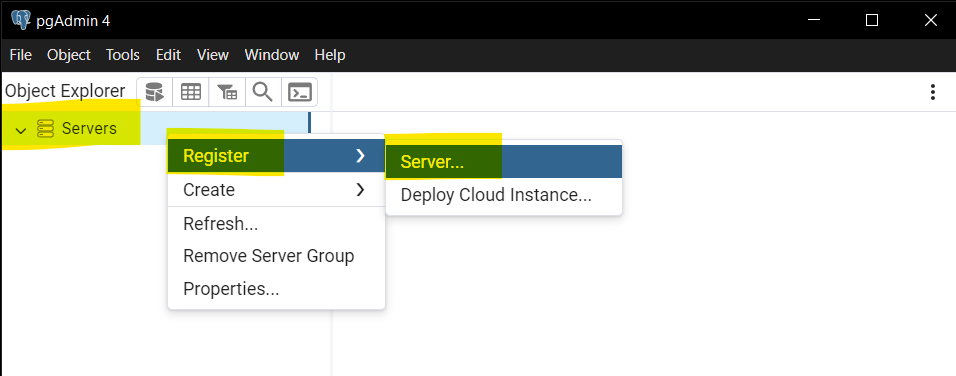
pgAdmin 4, press Enter to open it. - In pgAdmin's left sidebar, right-click Servers → Register → Server.
- General tab: type any name (e.g.
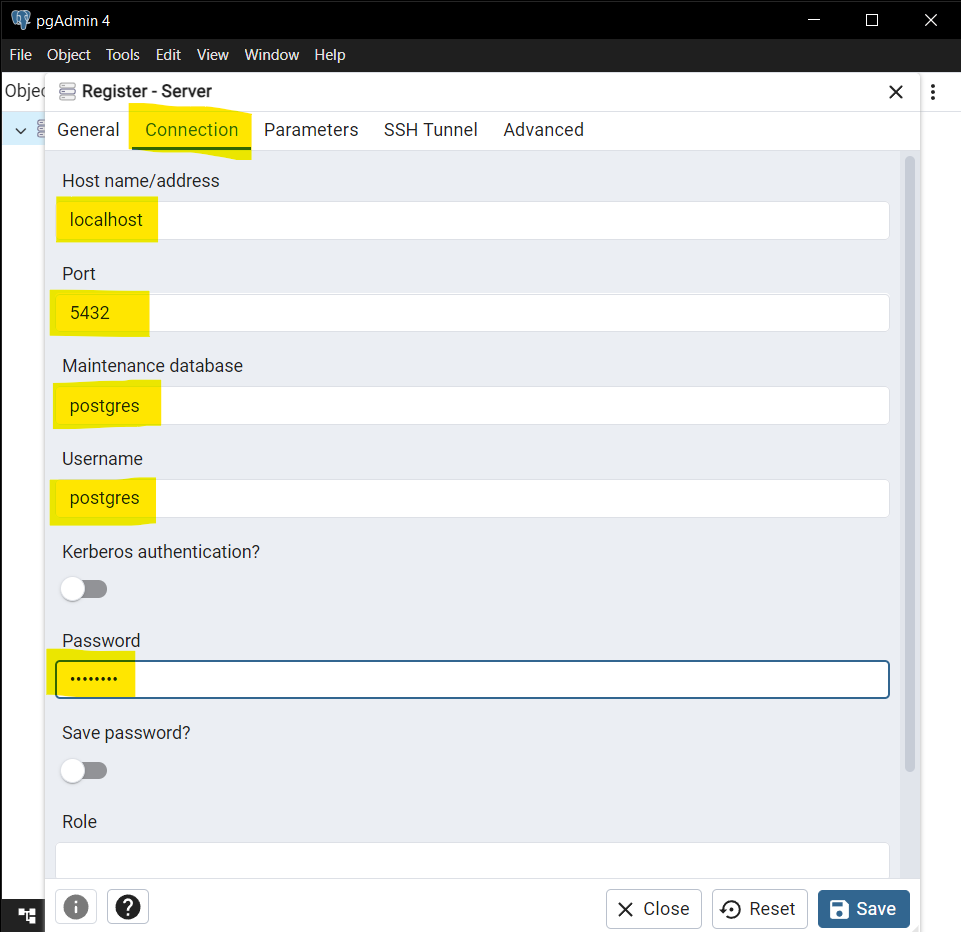
MagicInfo DB) — Save stays disabled until a name is entered. - Connection tab: Host
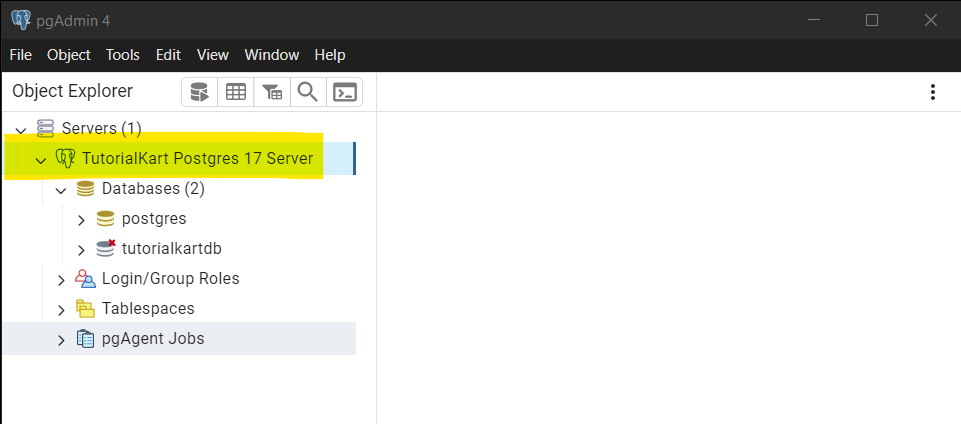
localhost, Port5432, Maintenance databasepostgres, Usernamepostgres, and the password you wrote down → Save. - If the server tree expands, the database is healthy.